 Nihongo Relay
iPhone · iPad · Free
Review words, practise questions, and keep what you learn chatting with AI
A study app for JLPT N5 to N1. Open it and you know what to review today. Words, grammar and questions that come up in ChatGPT or Claude can be saved straight into your notes by the AI; sync the app and they are ready to review.
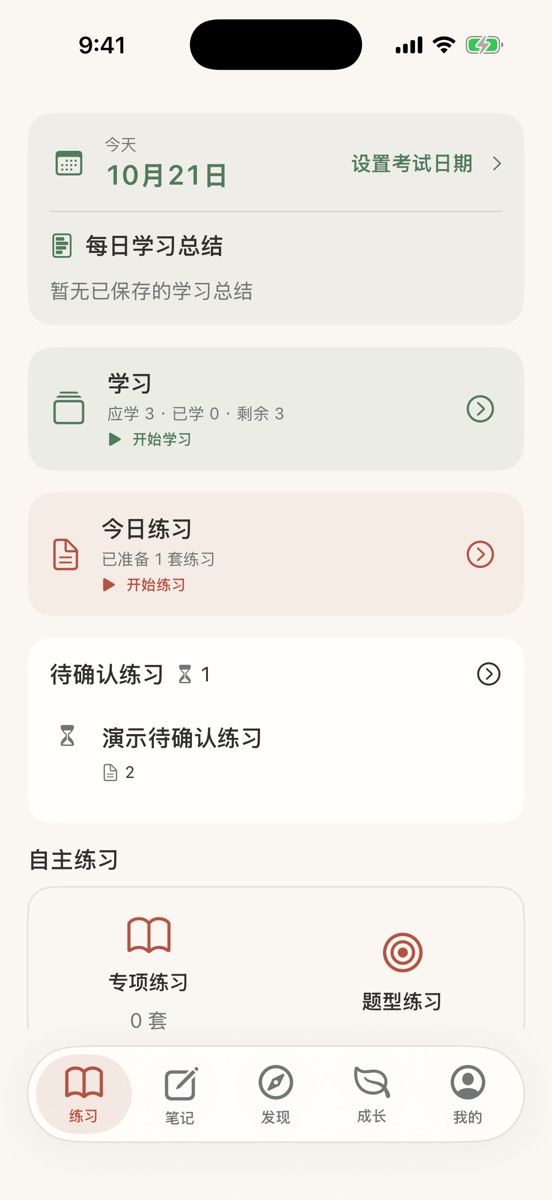
Five tabs, one job each
The tabs along the bottom are Practice, Notes, Discover, Growth and Me. Settings opens from the menu at the top left of Me; AI connections, your account, sync and offline resources are all there. Screenshots show the Chinese interface.
What to do today
The date, your exam countdown and the daily study summary sit at the top. The Study card shows how many cards are left today; below it come Daily practice and independent practice: topic, question-type, mixed and mock exams.
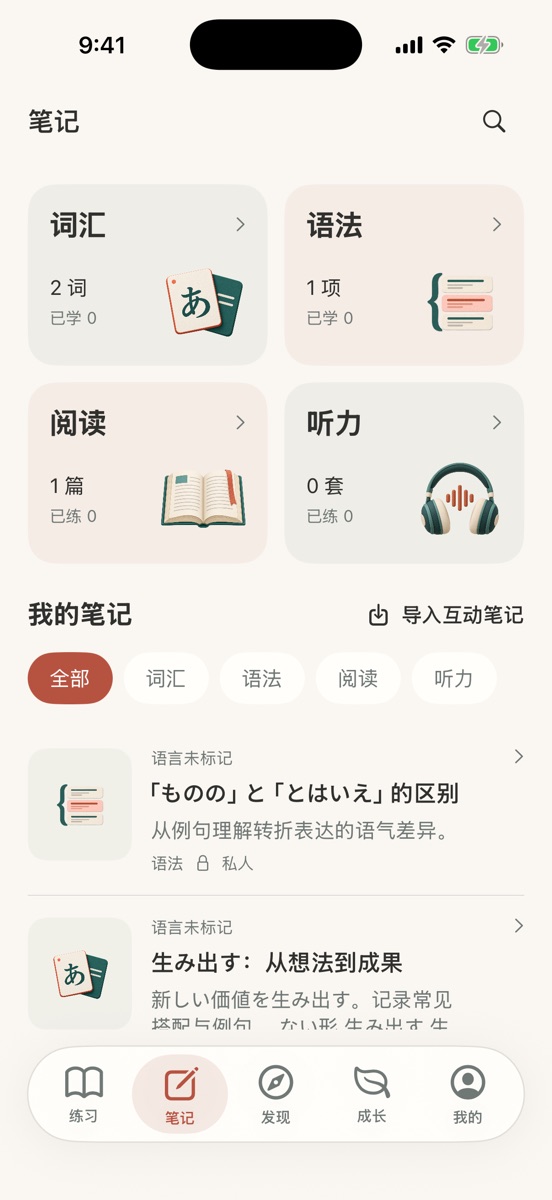
Your words, grammar and notes
Vocabulary, grammar, reading and listening at the top, with how much you have studied; your own study notes below. Open an entry for examples, memory tips and conjugations.
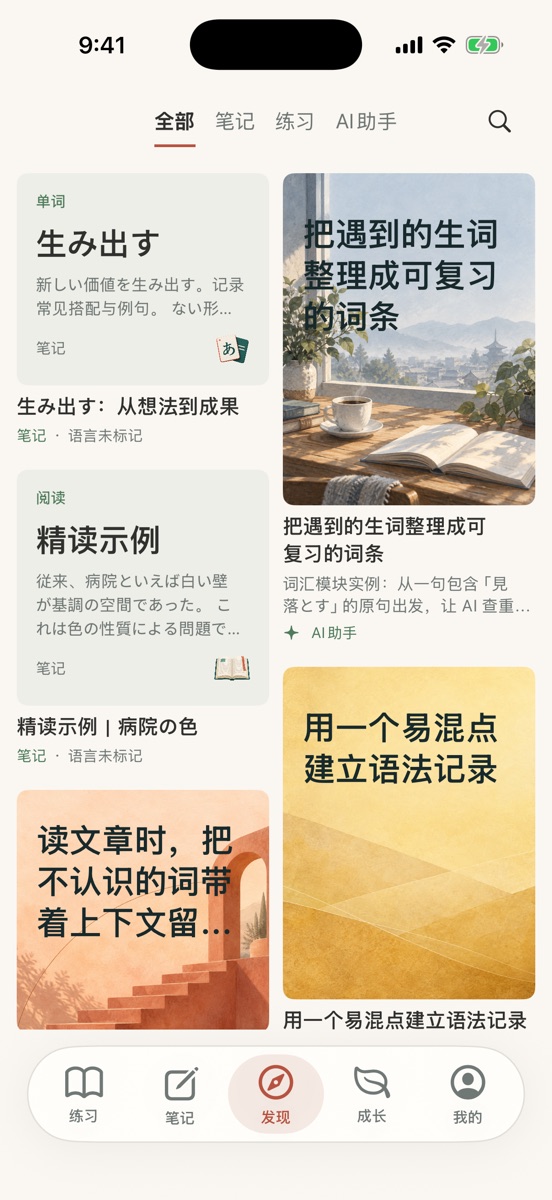
See how others study
Browse notes, practice sets and AI assistant articles other learners have shared, filtered by subject and explanation language. Import the wordbooks and practice you like into your account.
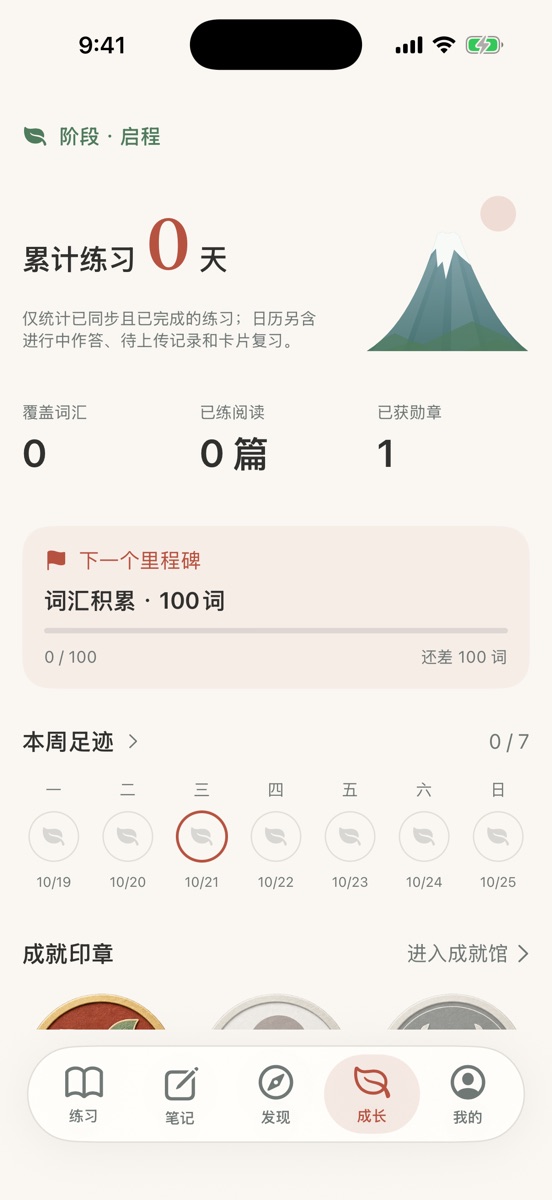
See your progress
Days practised, words studied, your next milestone, this week’s activity and badges. Further down: performance by module, practice history, incorrect answers and captures.
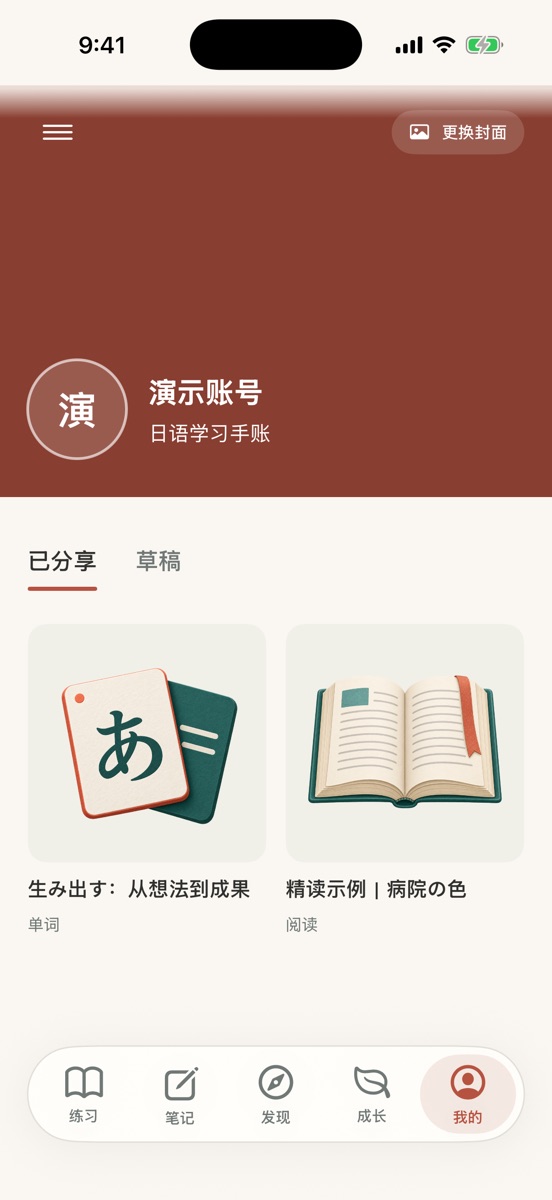
Your study journal
Pick your own cover; below it are what you have shared and your drafts. The menu at the top left opens Settings for your study plan, exam goal, account, AI connections, sync and offline resources.
A 15-minute day
A suggested order. You don’t have to do every step.
Open Practice
Check how many cards the Study card says are left, tap Start learning and go through them. Rate each card Forgot, Hard, Remembered or Easy; each button shows when the card comes back.
Do today’s practice
It is built from your recent mistakes and forgotten cards. Every question shows the reasoning, a memory tip and a comparison of the options, and your score and what you got wrong appear as soon as you finish.
Note your questions
When a word or sentence stumps you, tap the study companion and choose Note a question. It goes to Growth → Captures for you or the AI to sort out later.
Let AI organize it
In the evening, tell ChatGPT or Claude “organize today’s captures”. Words and grammar become entries and show up in review the next day.
Bring your AI chats into the app
What you learn in a chat is hard to find once the chat is over. Connect Nihongo Relay, and the AI can save words, grammar, examples and questions from the conversation into your account; sync the app and they are ready to review and practise. The AI can only read and write your own data, within the access you grant.
Learn in the chat
Ask about grammar, read an article, have the AI write questions. Chat as usual.
Checks and saves
The AI checks whether your library already has them, adds readings, meanings and examples, and saves entries or practice.
Stored in the cloud
It goes into your study account, visible on the web right away.
Sync and review
Open the app or pull to refresh. New entries land in Notes and appear on the Study card in Practice when due.
Connect once
- Copy the connection URL. It is also in the app under Me → menu (top left) → Connect an AI assistant.
https://jlpt.erzhiqian.cc/api/jlpt/mcp - In your AI client, add a custom connector (MCP) and paste the URL. See the list of clients below for where.
- A browser page asks for permission. Sign in with the same Apple or Google account you use in the app, and review the access.
- Back in the chat, say “check which Nihongo Relay account you are connected to”. If it names your account, you are done.
Whether you can add custom connectors depends on the AI client and your plan. You can disconnect any AI from the app at any time. See the AI connection guide for details.
What gets saved, and where it appears
| From the chat | In the app |
|---|---|
| Words, names | Notes → Vocabulary; on the Study card in Practice when due |
| Grammar, patterns, comparisons | Notes → Grammar; on the Study card in Practice when due |
| Questions the AI wrote | Once checked, built into practice under Practice → Daily practice or Topic practice |
| Reading passages, listening material | After they get questions, Notes → Reading / Listening |
| Questions you haven’t sorted out yet | Growth → Captures |
Which AI clients work
Any AI client that supports remote MCP with OAuth sign-in can connect. These are the common ones today.
| AI client | Status | Plan needed | Where to add it |
|---|---|---|---|
| Claude Code | Tested | Claude Pro or higher | Run claude mcp add --transport http jlpt https://jlpt.erzhiqian.cc/api/jlpt/mcp, then authorize with /mcp |
| ChatGPT | Tested | Plus or higher, with developer mode on | On the web: Settings → Apps → developer mode, then create a connector with the URL |
| Claude (web, desktop, mobile) | Should work | Pro or higher | Settings → Connectors → Add custom connector |
| Codex | Should work | A paid ChatGPT plan | Add the URL in Codex’s MCP settings and sign in |
| Cursor | Should work | Free plan is enough | Cursor Settings → Tools & MCP |
| VS Code + GitHub Copilot | Should work | Free plan is enough; Business/Enterprise need an admin to allow MCP | Command Palette “MCP: Add Server”, or .vscode/mcp.json |
| Gemini (gemini.google.com) | Should work | Personal Google account; region and age limits currently apply | On the web: Settings → Connected Apps → Custom apps |
| Mistral Le Chat | Should work | A workspace admin adds it | Connectors → custom MCP connector |
| Perplexity | Should work | Pro or higher | Settings → Connectors → custom connector |
| Zed, Kiro, OpenCode, Amazon Q CLI | Should work | Free | Each tool’s MCP settings |
| Windsurf, Cline, Continue | Extra setup | Free | Connect through the mcp-remote bridge |
| Microsoft Copilot Studio, Gemini Enterprise | Not supported yet | An organization admin must pre-register an OAuth client | — |
“Should work” means both the client and this service support remote MCP with automatic OAuth client registration, but we have not tested each one. Plans, regional limits and menu names change often, so check the client’s current documentation. Updated October 2026. Tried an AI that isn’t listed? Email us how it went.
What to tell the AI
Copy one, adjust it to your situation, and send it. Saying where to save it makes the AI write to your account instead of only answering in the chat.
Keep the new words
Add the new words from our conversation to Nihongo Relay. First check whether my library has them; for new ones add the reading, English meaning, part of speech and two examples, and save them to my “N2 wordbook”. Then tell me which entries you saved.
In the app: Notes → Vocabulary, search for the word
Tell similar grammar apart
Make 「〜わけにはいかない」 and 「〜ざるを得ない」 into two grammar entries with two examples each and an explanation of the difference, and save them to my N2 wordbook.
In the app: Notes → Grammar, with the comparison in the entry
Turn the chat into practice
From this conversation, pick 5 grammar points I misunderstood and write one JLPT-style question for each. After checking the answers and explanations, put them together as a topic practice.
In the app: Practice → Topic practice
Sort the notes from the app
Read my unprocessed captures in Nihongo Relay, turn each one into a word or grammar entry, and mark them processed when done. Ask me first about anything unclear.
In the app: items in Growth → Captures change to processed
Prepare today’s practice
Prepare today’s daily practice from my recent mistakes and forgotten cards, using only questions that have already been checked.
In the app: Practice → Daily practice
See how you are doing
Look at my Nihongo Relay accuracy and reviews this week, tell me the two question types I most need to work on, and plan the next three days.
The answer stays in the chat; the numbers match Growth in the app
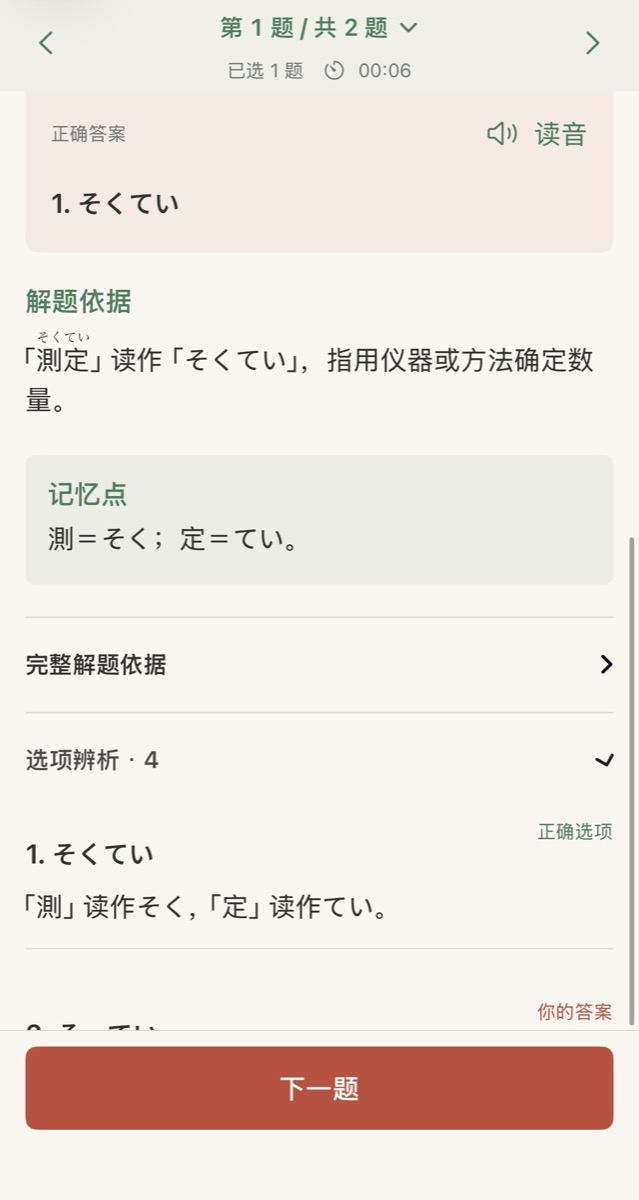
Check what the AI writes before you learn it
AI makes mistakes, so the app has a few safeguards:
- Questions the AI writes must pass a check before they go into practice.
- AI-written passages and translations are marked “AI-generated · to verify”.
- The AI checks for duplicates before saving, so one word doesn’t end up in several entries.
- Fix anything on the web, or ask the AI to edit the same entry.
Study without a signal
Card reviews and downloaded practice work offline; records upload automatically when you are back online. Download listening audio in advance from Me → Settings → Offline resources.
One account on web, iPhone and iPad
Sign in with the same Apple or Google account and your progress syncs everywhere.
Free, no tracking
No ads or purchases, and no analytics or tracking tools in the app. See the Privacy Policy.
Common questions
Can I use it without AI?
Yes. Reviews, practice, notes and offline study don’t need AI. AI just helps you add content faster.
Do I need a paid ChatGPT or Claude plan?
You need an AI client that can add custom connectors (MCP). Which plans support this varies, so check the client’s current documentation and the list of clients above.
What can the AI see?
Only the access you approved, and only your own account. You can disconnect from the app or the web at any time, and the token stops working immediately.
The AI saved it, but I don’t see it in the app
Pull to refresh in the app, or tap Sync study data in Me → Settings → Data sync. New entries can be searched in Notes right away, but appear on the Study card only from their first review date.
Is this an official app?
No. Nihongo Relay is an unofficial study tool and is not affiliated with the organizers of the JLPT.